
Keyword Alarm Guide for DivAlarm
Choose keywords from phone notifications or TradingView webhook messages. You can use the same rules for alarms, signal combinations, and exchange auto-orders.
TradingView connection test & PC setup
📋 Table of Contents
Choose a Keyword Source
Open Keyword Alarm · Auto Orders and choose an input at the top of the page. Tap ? beside the selector for help. Both modes share your saved keywords, combinations and alarm settings. Every account can try 5 keyword alarms free, without a card. Auto-Order remains Pro-only.
5 free executions per account: Phone notification keywords, webhook keywords and combined alarms share one lifetime allowance. A use is counted when a matching alarm is successfully scheduled on your phone. Unmatched messages, duplicate deliveries and failed scheduling do not use a credit. Internet access is needed to verify free uses.
The allowance is separate from the 7 general alarms, does not reset after reinstalling, and does not include automatic orders. Your rules stay saved after all 5 uses; choose Pro to continue.
Phone notification keywords (Android)
- Select Phone notification keywords.
- Open the notification access settings from the page and allow DivAlarm to read notifications.
- Add text to Keyword Include that appears in the title or body of a notification you want to match.
- When a matching notification arrives, DivAlarm applies your configured alarm, combination, and auto-order rules.
Notification access must stay enabled to read other apps. DivAlarm can only match text Android provides; grouped summaries, repeated copies, and DivAlarm's generated alarm or order-result notifications are ignored. For messaging notifications, only the newest message is checked.
DivAlarm's own incoming signals can also trigger keyword alarms and orders in this mode. Their existing enabled filters still apply. You can keep using the @D, @E, and @P signal keywords.
Webhook keywords
Select Webhook keywords to receive messages sent to your personal webhook URL, including TradingView alerts. The URL and copy button appear only in this mode. Follow the TradingView setup steps below.
Switching modes keeps your saved rules. In phone mode, webhook messages do not trigger keyword alarms or orders on this device. Existing users start in webhook mode, so their current webhook setup continues until they switch.
Reading other apps' notifications is an Android feature; it is not available on iOS or the web.
DivAlarm × TradingView – Webhook Examples
These videos show the Webhook keywords workflow. Choose that source before following the webhook URL steps.
When creating a Bitget key, select Read-write. Enable both Futures order to place orders and Futures Holdings to view positions.
🔔 Keyword Rules and TradingView Webhook Setup
In Keyword Alarm, add the text you want to match to Keyword Include. Phone mode checks notification titles and bodies; webhook mode checks incoming webhook text. Choose your source before testing a rule.
Adding a Webhook in TradingView
Select Webhook keywords, add AA to Keyword Include, and turn on its alarm. Leave auto-orders off for any keyword rule or combination that matches AA while testing a real TradingView alert. Expand Webhook URL to copy your personal URL. Tap ? beside the URL heading for the illustrated steps.
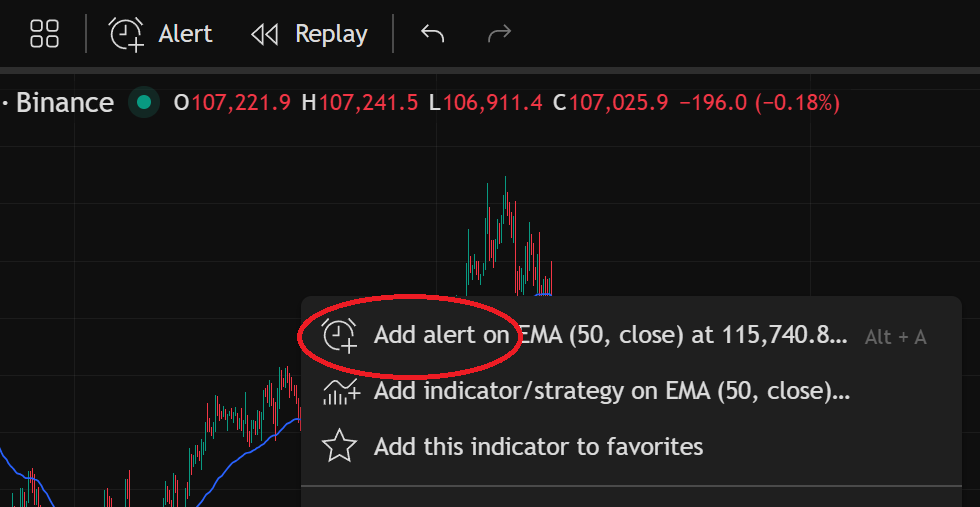
Right-click on the indicator you want to receive signals from in TradingView and click "Add Alert on ~".
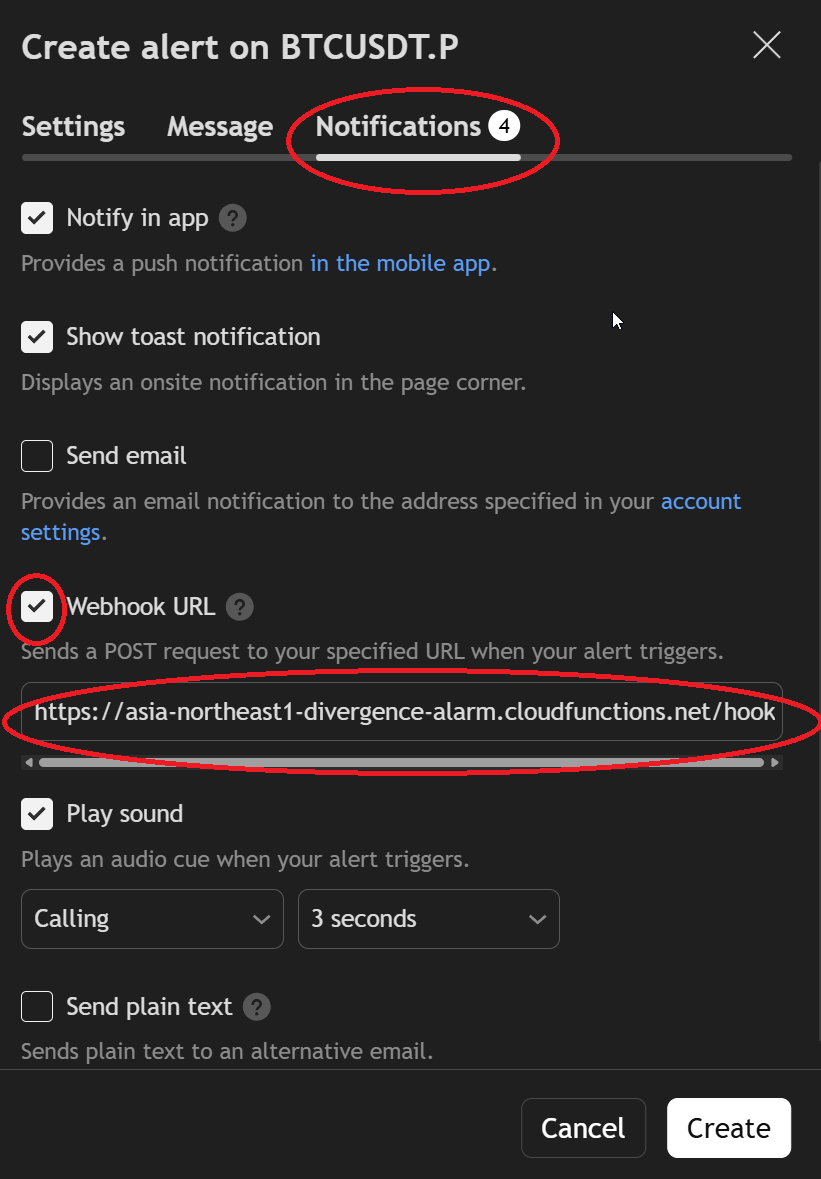
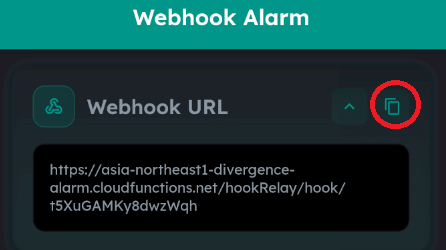
Open Notifications, enable Webhook URL, paste your personal URL, and select Apply.
You can reuse the same URL for other alerts. If a new alert already has your URL, check that the box is enabled and the address is correct. Check each existing alert individually.
For a one-time price test, choose Price → Outside Channel and Once only. Set both bounds to one side of the current price. For example, if the price is 100, use a lower bound of 98 and an upper bound of 99.
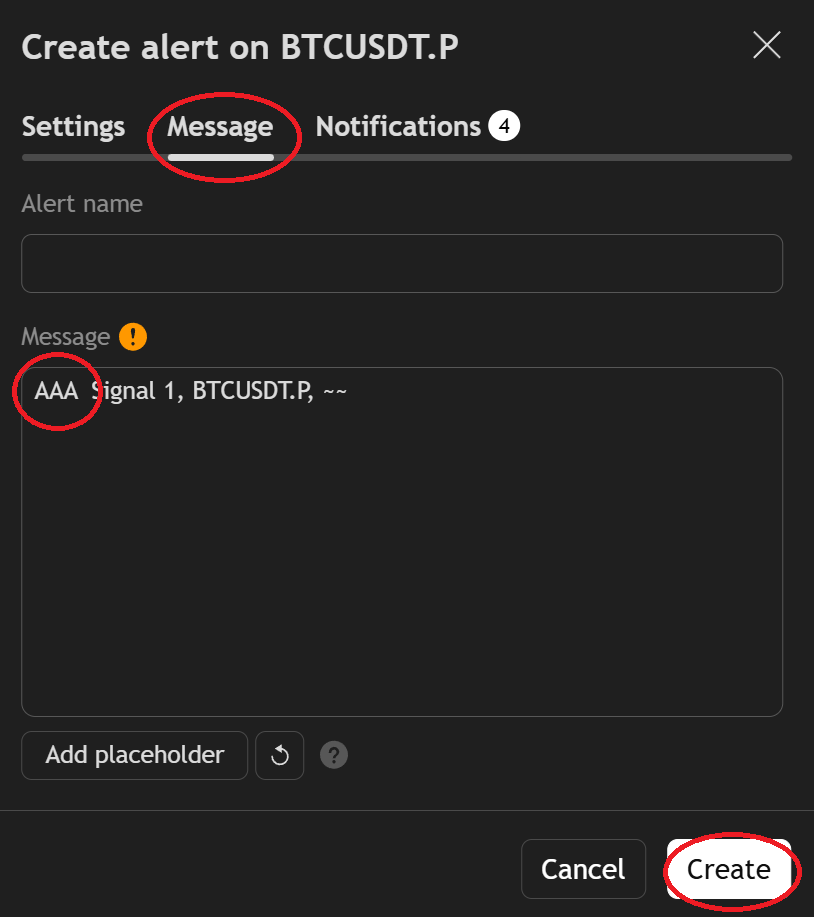
The TradingView and app screenshots use AAA to show where the keyword goes. For this test, enter AA Webhook test in Message or add your registered keyword AA to the existing message, then apply the change.
Select Create. When the condition is met, check the TradingView alert log and the alarm on your phone.
Receiving TradingView Alerts in the App
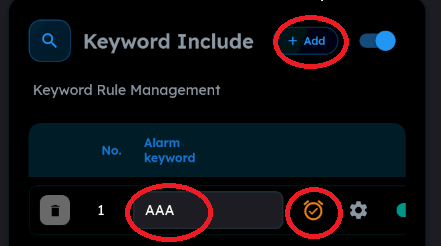
Keep Webhook keywords selected. A message containing AA triggers the alarm you enabled for that keyword. Turn off the AA test rule when you finish.
To check delivery from the server to your Android phone, send a test signal from the connection test. This diagnostic skips keyword rules and exchange orders and uses none of your free alarm allowance.
🤖 Auto-Order with Keyword Alarms
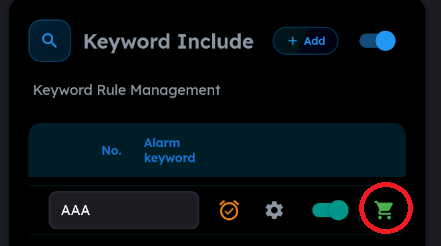
With Pro, you can attach auto-orders to individual keyword rules or combinations. Keep auto-orders off for alarm-only rules. When enabled, a match from your selected source or an eligible DivAlarm signal can place a real order on your exchange.
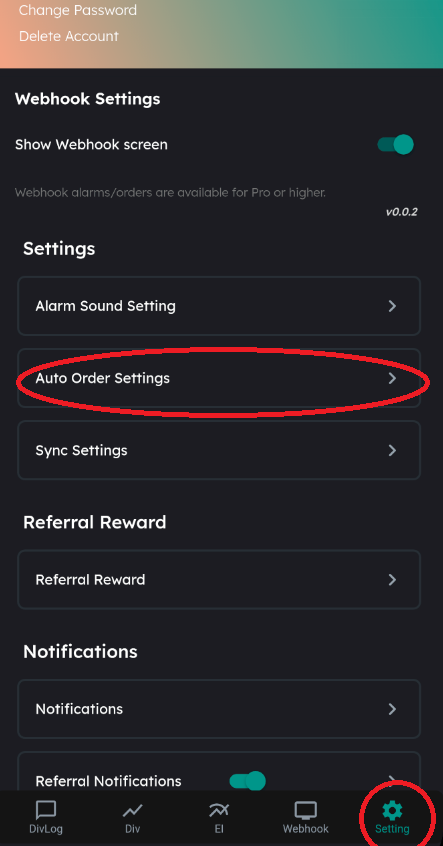
Enter your exchange API keys under Settings → Auto Order Settings. The Android app supports Binance, Bybit, OKX, Bitget, Gate, and Bitunix.
Tap the cart at the right of the keyword row to choose the exchange, symbol, and order settings, then enable auto-orders for that rule. If you use Bitget, check the two required permissions in Exchange API Key Setup.
📝 Registering DivAlarm Signals as Keywords
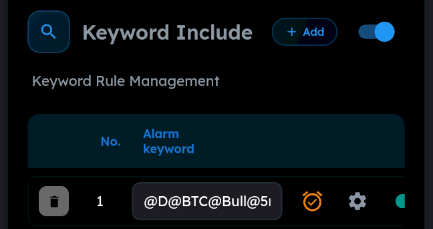
DivAlarm's own signals can trigger keyword alarms, combinations, and auto-orders in both input modes. Register them with the formats below. The signal's original enabled filters still apply; adding a keyword does not turn on a disabled signal filter.
RSI divergence (@D):@D@Kind@Direction@Status@MainTimeframe[@SubTimeframe]
Status values are early_completed, early_confirmed, confirmed, and forming. The second timeframe is used for Forming signals.
Extra indicators (@E):@E@Kind@TitleKeyword@Timeframe
Price alerts (@P):@P@Kind@TitleKeyword
Existing @D rules without a recognized status remain supported; their fourth and fifth fields keep their main and secondary timeframe meaning.
Alarm Types:
@D— RSI Divergence filters@E— Extra Indicators@P— Price alerts
Examples
@D@BTC@Bull@forming@5m@1m
→ RSI Divergence, BTCUSDT.P, title contains "Bull", Forming, main 5m, sub 1m
@D@ETH@Bear@confirmed@15m
→ RSI Divergence, ETHUSDT.P, title contains "Bear", Confirmed, 15m, no sub timeframe

@E@BTC@Sell@30m → Extra Indicator, BTC coin, title contains "Sell", 30m
@E@BTC@Buy@1h
@E@ETH@Breakout@15m
@E@BTC@Breakdown@5m
@E@BTC@Near Support@1m
@E@BTC@Near Resistance@5m
@E@BTC@EMA50@1h
@P@BTC@Up → Price alert, BTC coin, title contains "Up"
@P@ETH@Down
🔀 Signal Combination Alerts
Combine matched phone notifications or webhook messages from the selected source with eligible DivAlarm signals to create a combination alert. The keyword rules and time-window settings work in both modes.
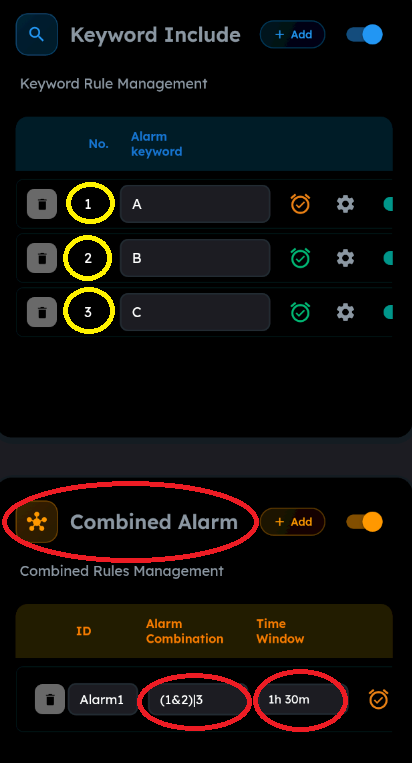
Set conditions that must be met within a time window for alarms to trigger.
Example:
Within 1 hour 30 minutes:
• 'Alert with keyword A' AND
• 'Alert with keyword B' both arrive, OR
• 'Alert with keyword C' arrives
Enter (1&2)|3 in Alarm Combination and 1h 30m in Time Window.
& = "AND" (both conditions must be met)
| = "OR" (either condition can be met)
Even if individual keyword alarms are disabled, the combination can still trigger when conditions are met.
Auto-orders are also possible with combination alerts!