DivAlarm User Manual
Use this guide to configure RSI divergence alerts, webhook features, extra indicators, referral rewards, and core app settings.
📋 Table of Contents
📊 Viewing Signal Notifications ("DivLog")
"DivLog" is where you receive divergence alert signals.
- Up to 150 signals are stored. Clean up periodically.
- Shows unchecked alerts. Check the mark to dismiss the alarm. Maximum 5 recent unchecked alerts shown.
- Filter to view only the signals you want.
🔍 View Signal Details
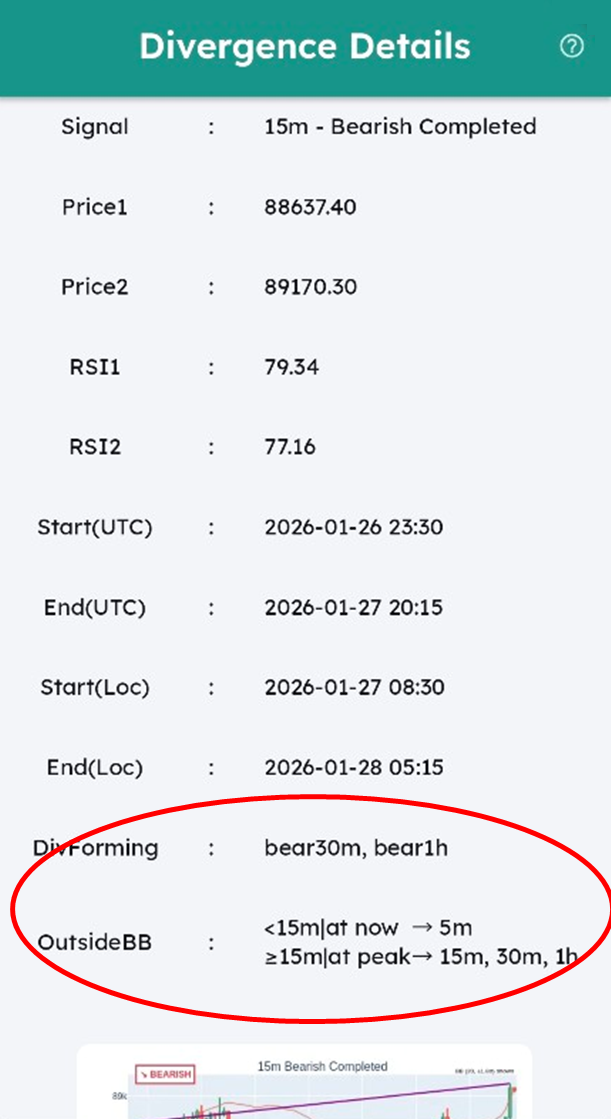
By tapping each alert, you can view detailed signal information.
For RSI Divergence alerts, you can see the start and end prices, RSI values, and timestamps.
"DivForming" shows divergences that are forming on other timeframes at the moment the signal occurs.
"OutsideBB" shows which timeframes were outside the Bollinger Bands when the signal occurred.
- For timeframes smaller than the signal's timeframe, it shows which candles were outside the Bollinger Band at the signal moment (at now).
- For timeframes larger than the signal's timeframe, it shows which candles were outside the Bollinger Band at the later RSI divergence peak (at peak).
Example
In the example above, a Bullish signal occurs on the 15m timeframe.
"DivForming" indicates that bearish divergences are forming on the 30m and 1h timeframes.
"OutsideBB" shows:
- At the signal moment, the 5m timeframe was outside the Bollinger Band.
- At the RSI divergence peak, the 15m, 30m, and 1h timeframes were outside the Bollinger Band.
⚙️ RSI Divergence Alert Settings ("Div")
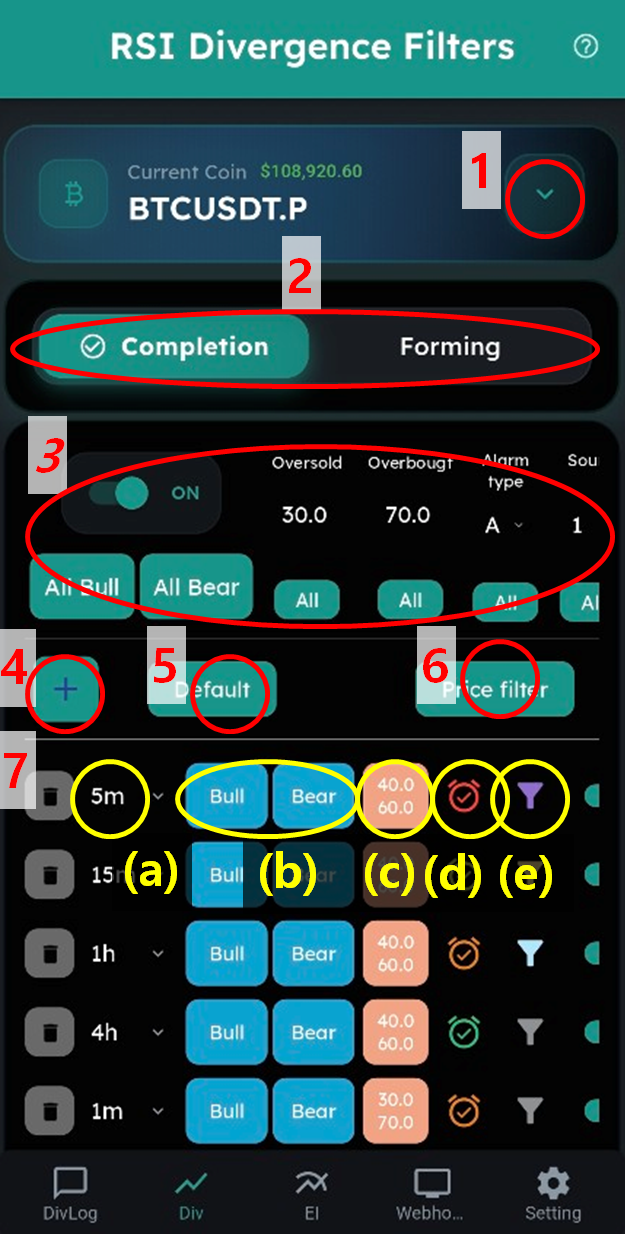
Overall RSI Divergence Settings
- Select which coin to configure.
- Choose between 'RSI Divergence Complete' vs 'RSI Divergence Forming' signals.
- Batch settings area — apply settings to all items below at once.
- Add divergence filters with the + button.
- Reset filters to recommended default settings.
- Set price conditions in batch.
Individual Filter Settings
- Configure individual RSI divergence signals to receive:
(a) Select the desired timeframe. For 'RSI Divergence Forming', choose both a 'main timeframe' and 'sub timeframe'. Alerts trigger when RSI peak forms on the smaller timeframe while divergence is forming on the main timeframe (price reversal).
(b) Choose signals: "Bull(bullish)" or "Bear(bearish)". Blue = alerts enabled, Gray = disabled.
(c) Set oversold/overbought thresholds. Bullish alerts when 'starting RSI' is below oversold level; bearish when 'starting RSI' is above overbought level.
(d) Configure alarm type and sound. Detailed settings in the Settings page:
A Force Alarm (Loop) — plays continuously until stopped manually, ignores silent mode
B Force Alarm (Once) — plays once, ignores silent mode
C Follow Phone Settings — uses device's normal sound settings
D Vibrate Only — vibration without sound
E Silent Mode — no sound or vibration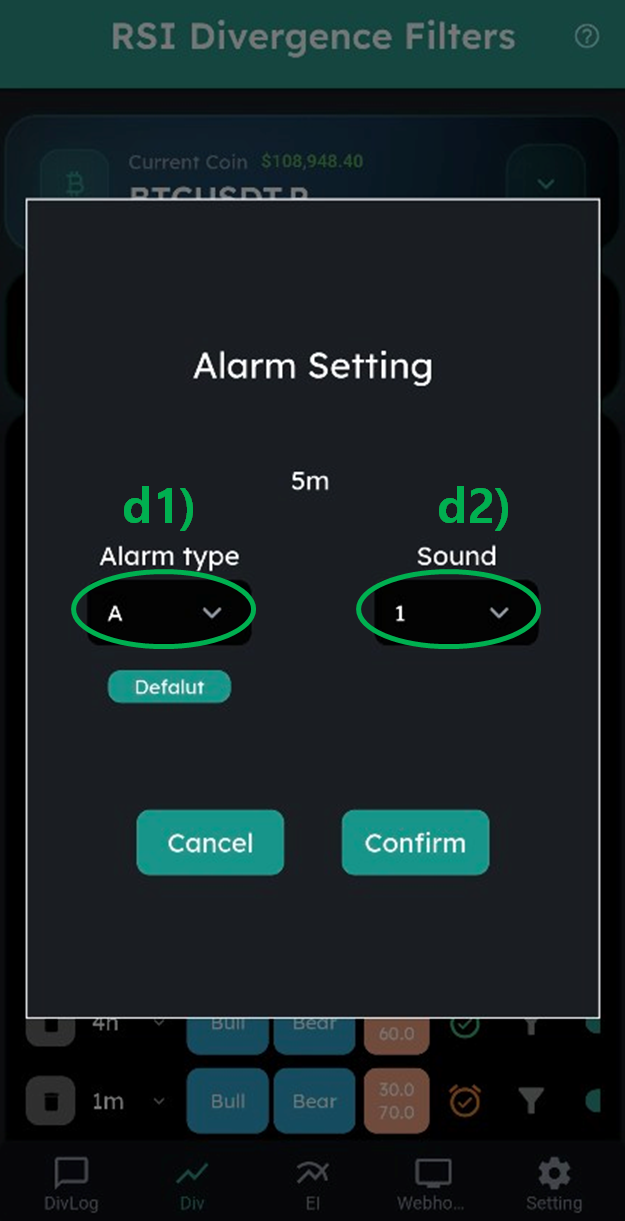
(e) Set additional conditions for useful signals only: price conditions, other timeframe RSI forming conditions, Bollinger Band conditions.
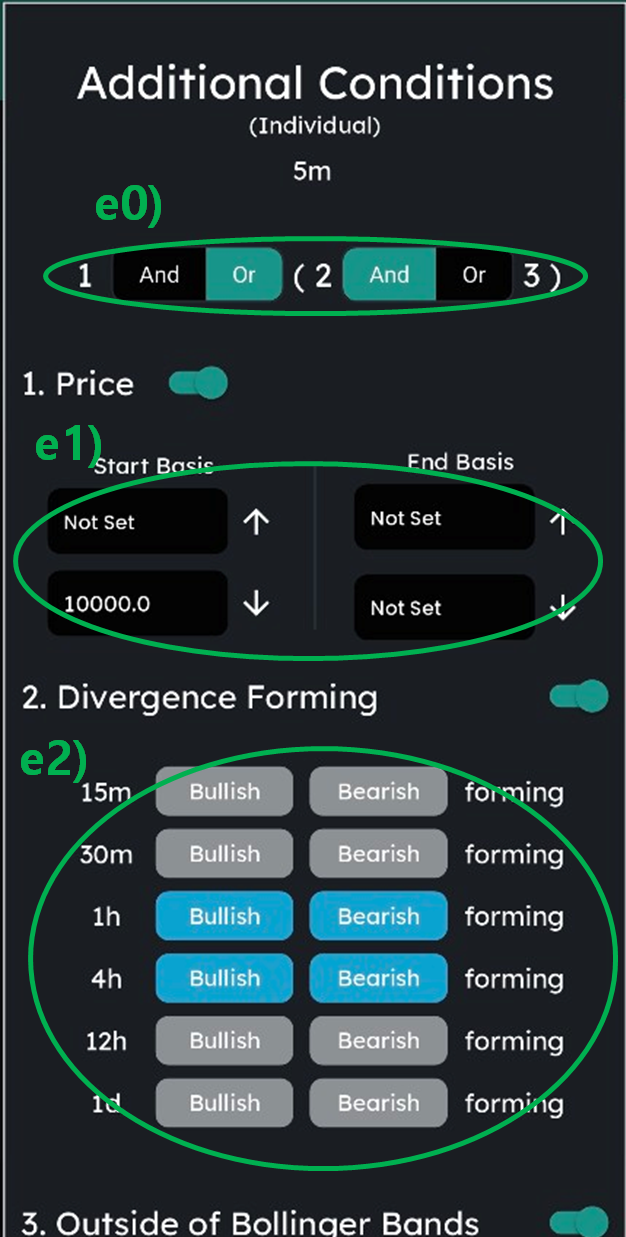
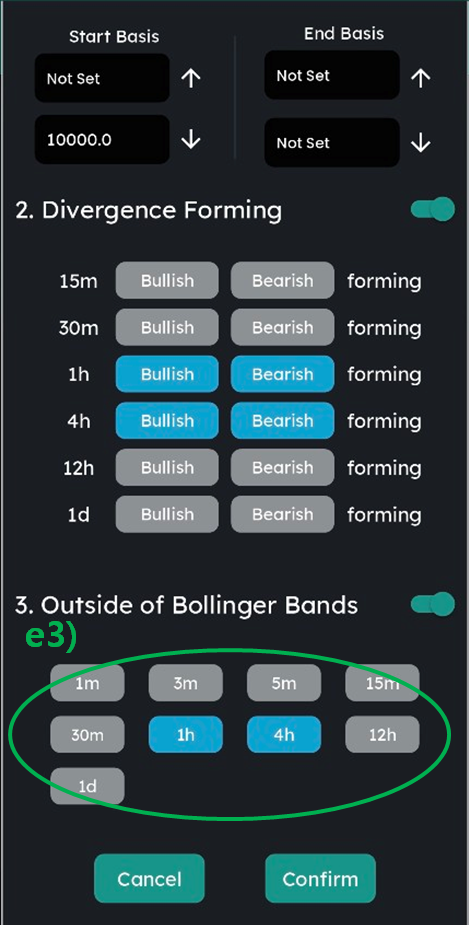
e0) When multiple conditions are set, configure the relationship: "and" (all must be satisfied) or "or" (any one satisfied).
e1) Set price conditions — alert when divergence start/end price is above/below a specific price.
e2) Alert when divergence is forming on another timeframe.
e3) Check if RSI divergence final peak price is outside Bollinger Bands.
Strategy Tips
- Always combine with other indicators: resistance, trendlines, Fibonacci, etc.
- Like all indicators, RSI divergence isn't 100% accurate — it improves probability.
- 1m, 5m divergences are often ignored, but reliability increases: 15m < 1h < 4h. 4h divergence is highly reliable — recommended to set as A-grade alarm.
📈 Additional Indicator Alerts ("EI")
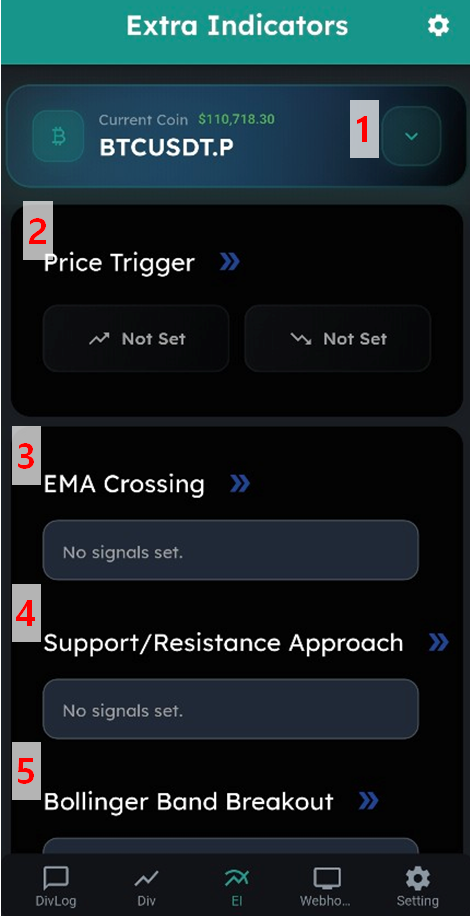
- Select which coin to configure.
- Set price alerts for the coin.
- Configure EMA (Exponential Moving Average) cross alerts.
- Set support/resistance approach alerts.
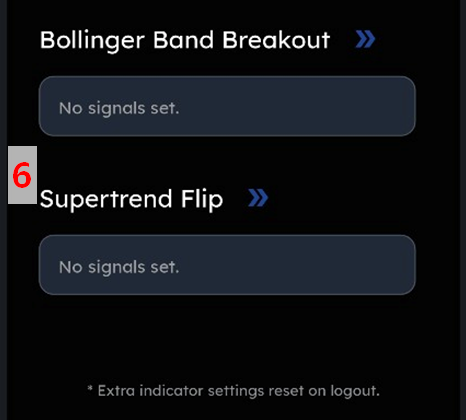
- Configure Bollinger Band breakout alerts.
- Set Supertrend change alerts.
※ Additional indicators (3, 4, 5, 6) reset when you log out.
🔗 TradingView Webhook, Signal Combination & Auto-Order
"Webhook" — Pro feature for advanced users.
⚙️ Settings Page
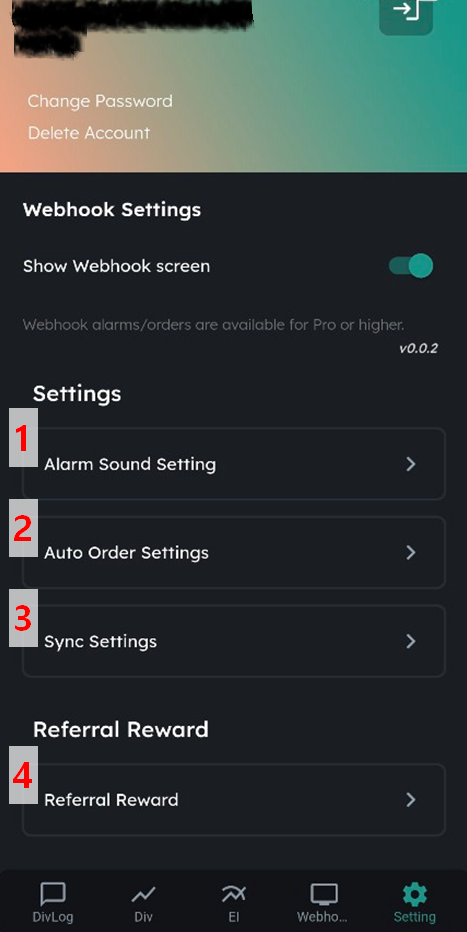
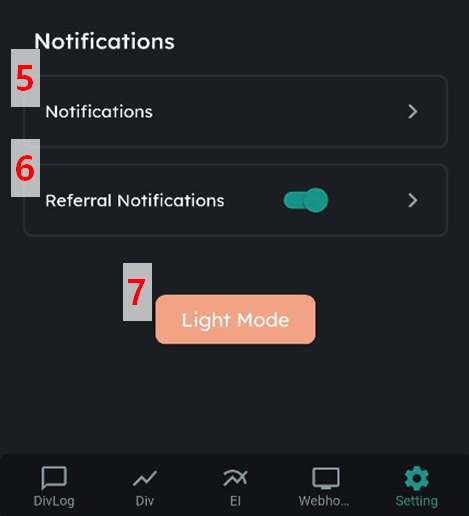
- Configure alarm types (A, B...) and alarm sounds (1, 2...).
- For auto-orders, enter each exchange's API keys.
- You can test whether notifications are arriving on your current phone. By sending a test message to yourself, you can check whether alerts are delivered according to your configured filters.
- This is a page for setting up referral reward-related options.
- This is the place where you receive global announcements.
- This is the place where you receive exclusive announcements sent by the referral you registered when you signed up.
- You can switch the entire app between Light Mode and Dark Mode.
💰 Referral Rewards
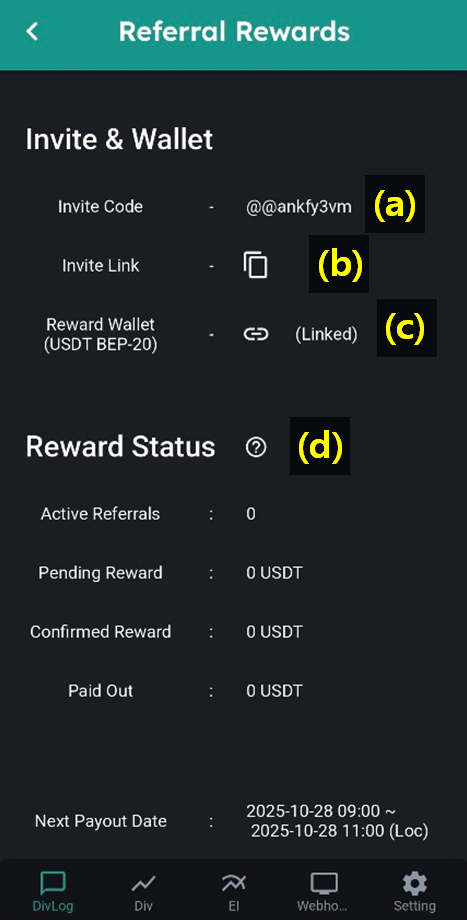
(a) Your referral code. When others subscribe with this code, you become their referrer.
(b) Your invite link. Anyone who subscribes through this link automatically registers you as their referrer.
(c) Enter your wallet address for referral rewards. Must be a BEP-20 USDT wallet (major exchange wallets recommended). You can test if deposits work correctly from 'My Info' on the DivAlarm website.
(d) Shows your referral reward status: current referral count, potential reward amount, confirmed amount, and paid amount.
Rewards move from 'potential' to 'confirmed' 14 days after the referred user's subscription payment (excluding free trial). Payments are made weekly on Tuesday UTC midnight.
Annual subscription referral: 25 USDT per successful referral.
How to Earn Referral Rewards
1] Go to Settings → Referral Rewards → Enter your reward wallet address.
2] Share your referral link. Others will be directed to the subscription page with your code.
3] When they subscribe and pay, rewards are deposited.