TradingView Webhook Guide for DivAlarm
Connect TradingView alerts to DivAlarm for keyword alarms, webhook automation, signal combinations, and exchange auto-orders.
📋 Table of Contents
DivAlarm × TradingView – Quick Summary
🔔 Keyword Alerts
Adding Webhook in TradingView
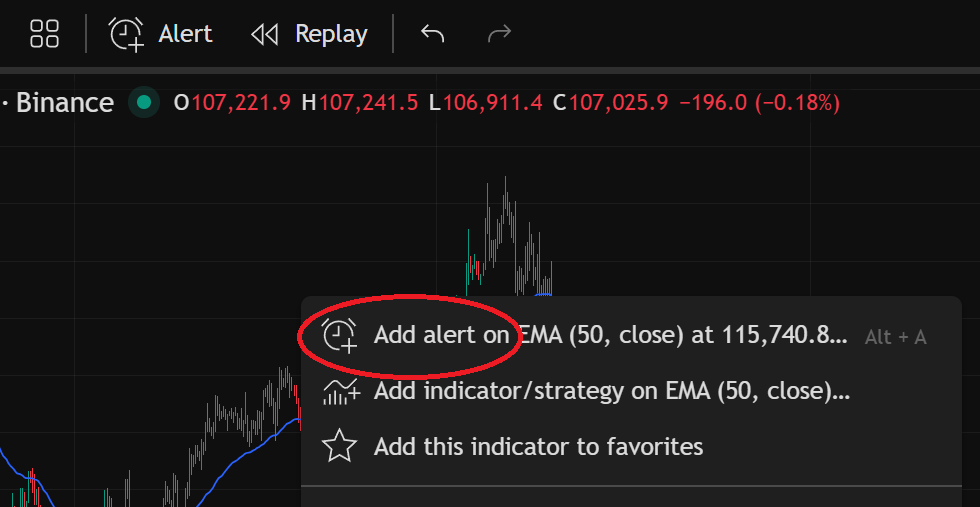
Right-click on the indicator you want to receive signals from in TradingView and click "Add Alert on ~".
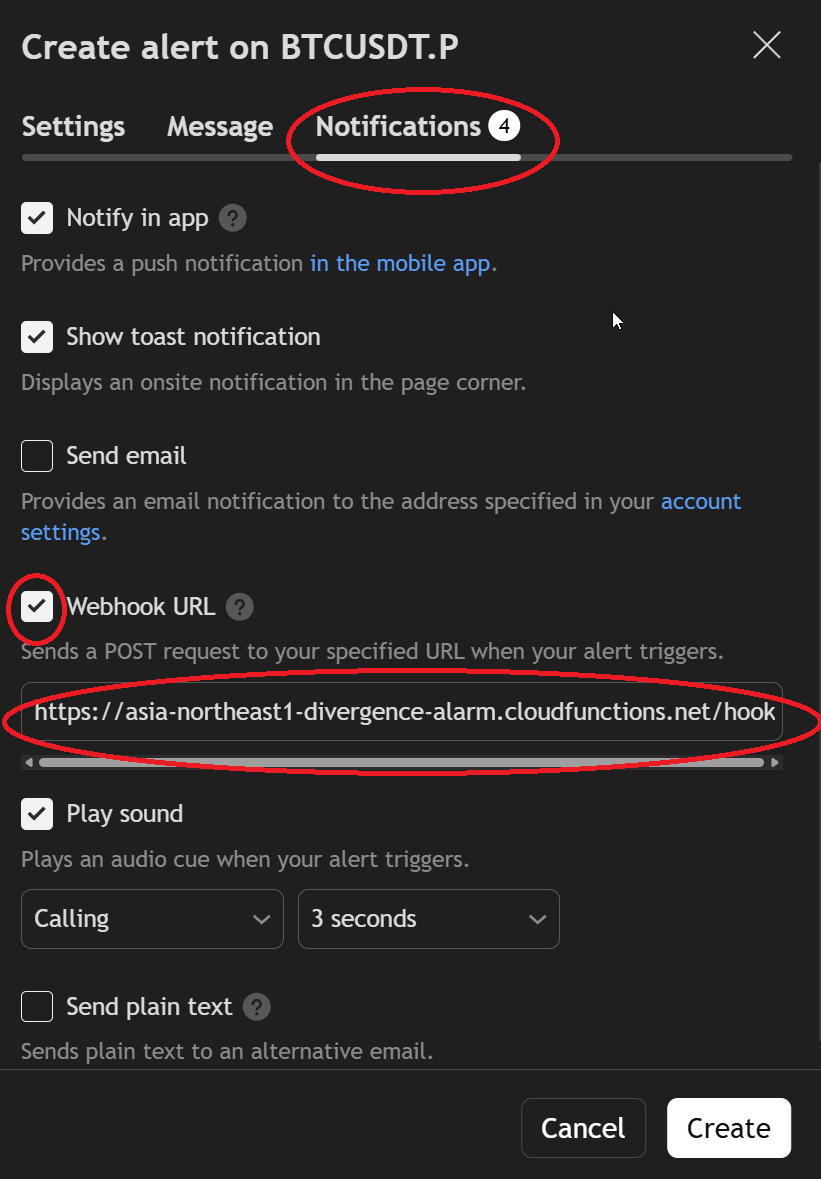
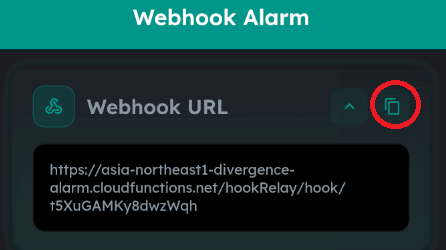
In the "Notifications" section, check "Webhook URL" and paste the address copied from the app in the input field below.
Once set, this will be automatically checked/filled for other alerts.
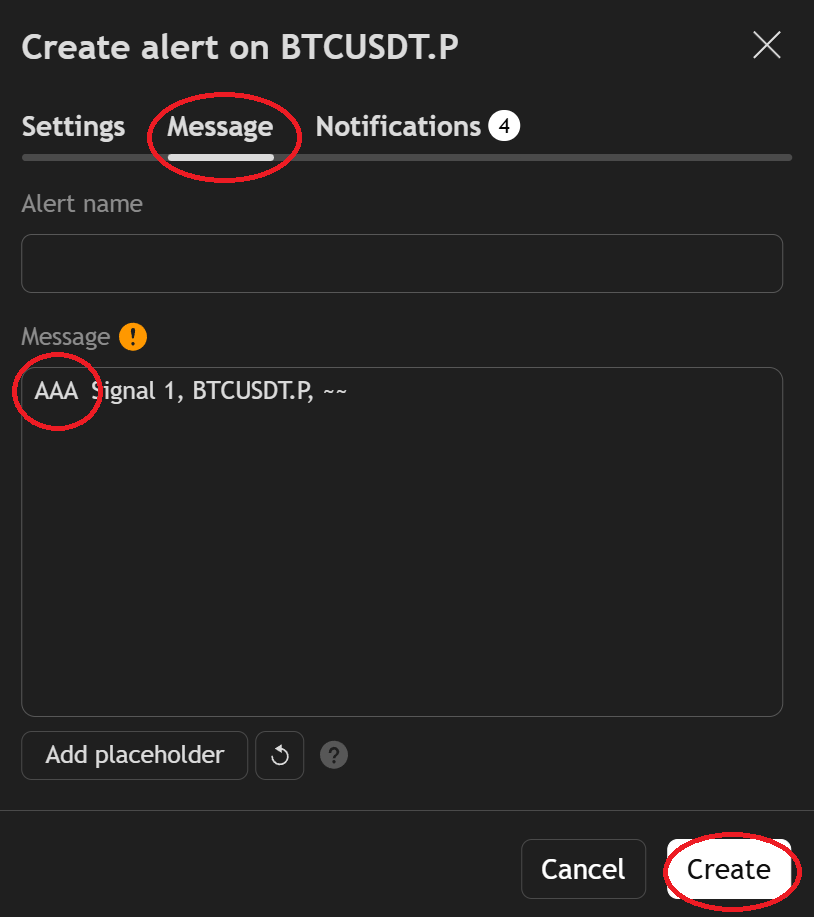
In the "Messages" section under "Message", add any keyword you want (e.g., "AAA").
Click "Create" to schedule the TradingView alert.
Receiving TradingView Alerts in the App
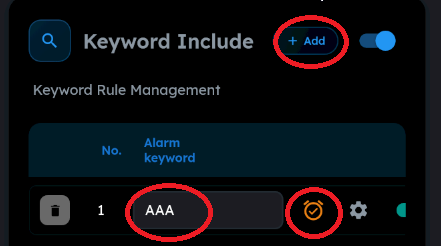
Add the keyword (e.g., "AAA") to the 'Keyword Include' section in the app. When the TradingView alert "Message" contains the keyword, the alarm will sound as configured.
🤖 Auto-Order with TradingView Alerts
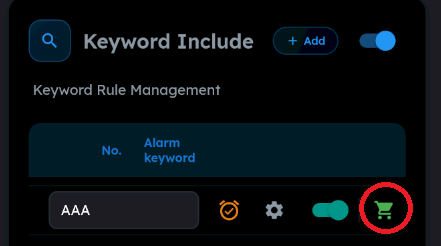
You can set up 'Auto-Orders' to be sent to exchanges when keyword alerts are received.
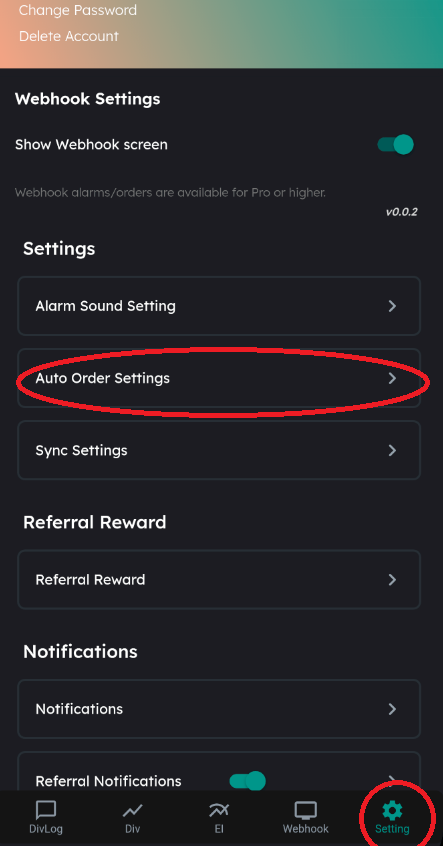
Supported exchanges for auto-orders: Binance, ByBit, OKX, Bitget, Gate
You must enter API keys in the app Settings page.
📝 Registering DivAlarm Signals as Keywords
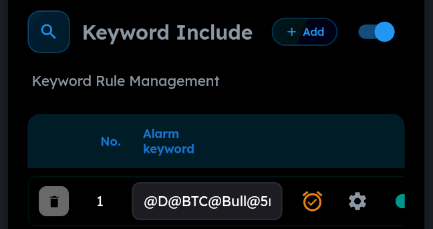
DivAlarm's own alerts can also be added to 'Keyword Combinations' (for combination alerts or auto-orders).
Format: @AlarmType@CoinNamePrefix@TitleKeyword@Timeframe@SecondTimeframe(if any)
Alarm Types:
@D— RSI Divergence filters@E— Extra Indicators@P— Price alerts
Examples
"@D@BTC@Bull@5m@1m"
→ RSI Divergence, BTCUSDT.P, title contains "Bull", Forming, main 5m, sub 1m
"@D@ETH@Bear@15m@O"
→ RSI Divergence, ETHUSDT.P, title contains "Bear", Complete, 15m, no sub timeframe

"@E@BTC@Sell@30m" → Extra Indicator, BTC coin, title contains "Sell", 30m
"@E@BTC@Buy@1h"
"@E@ETH@Breakout@15m"
"@E@BTC@Breakdown@5m"
"@E@BTC@Near Support@1m"
"@E@BTC@Near Resistance@5m"
"@E@BTC@EMA50@1h"
"@P@BTC@Up" → Price alert, BTC coin, title contains "Up"
"@P@ETH@Down"
🔀 Signal Combination Alerts
Combine multiple TradingView signals to create new or filtered signals.
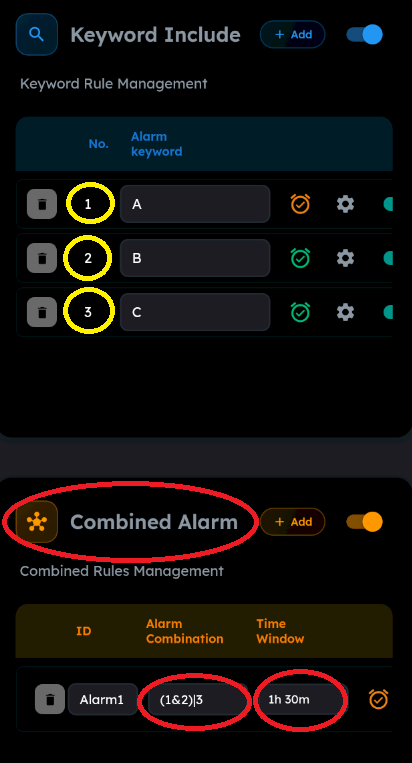
Set conditions that must be met within a time window for alarms to trigger.
Example:
Within 1 hour 30 minutes:
• 'Alert with keyword A' AND
• 'Alert with keyword B' both arrive, OR
• 'Alert with keyword C' arrives
Enter (1&2)|3 in 'Alarm Combination' and 1h 30m in 'Time Combination'.
& = "AND" (both conditions must be met)
| = "OR" (either condition can be met)
Even if individual keyword alarms are disabled, the combination can still trigger when conditions are met.
Auto-orders are also possible with combination alerts!