Set a forced alarm for a keyword
Choose an alarm type and sound on the keyword rule. The video shows how to set a forced alarm for a TradingView signal.
 DivAlarm
Send a test from this page to check delivery to your Android phone. Then send one TradingView alert with the keyword AA to check your alert rule.
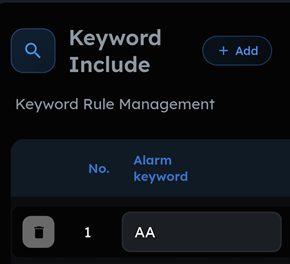
In DivAlarm, open Keyword Alarm → Webhook keywords, add AA and turn on its alarm. Copy the webhook URL below while signed in to the same account as your phone.
Sign in with your app account to see your URL
Keep this address private. Anyone who has it can send a signal to your account.
To test the alarm on its own, turn off auto-orders for any keyword or combination that matches AA.
 Open full-size image
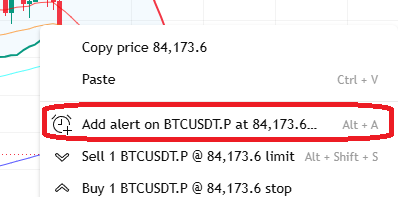
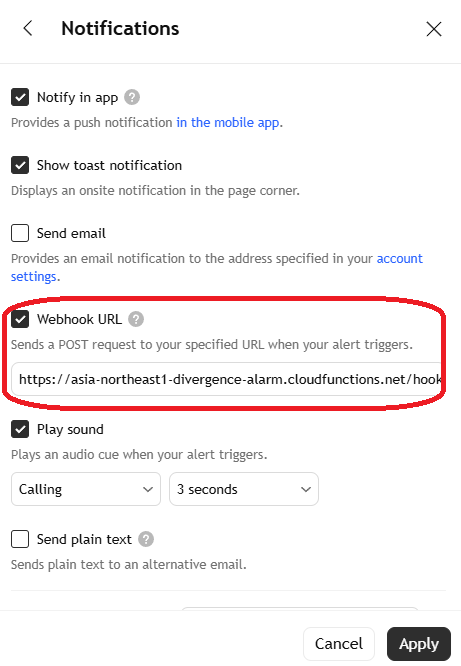
Right-click the chart and choose Add alert. Open Notifications, check Webhook URL, paste your address and press Apply.
Use the same URL for other alerts. If a new alert already shows your address, check that Webhook URL is enabled. For an existing alert, check its own settings.
 Open full-size image
 Open full-size image
 Open full-size image
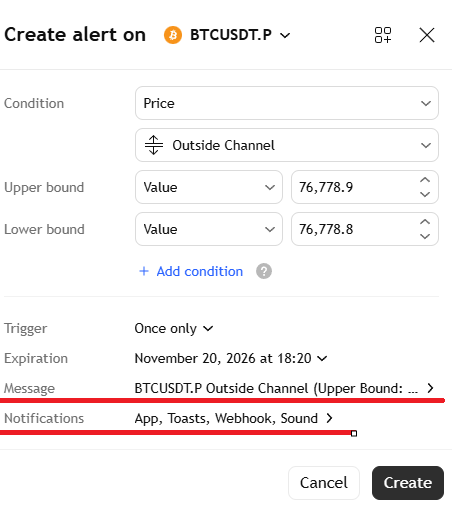
For a quick check, select Price → Outside Channel. If the current price is 100, for example, set the lower bound to 98 and the upper bound to 99. Select Once only. For an indicator alert, choose the indicator condition you want to use.
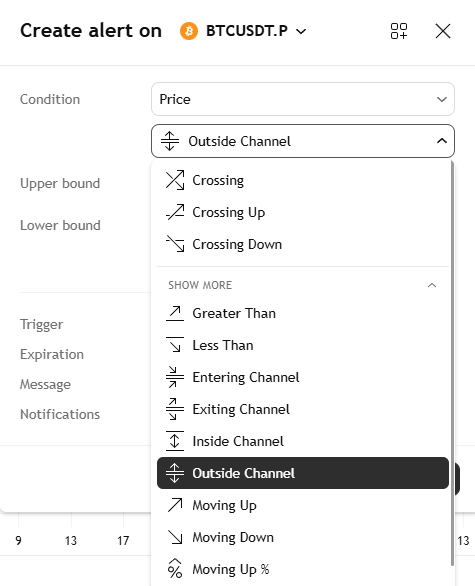 Open full-size image
Open Message in TradingView, include the same AA keyword you enabled in the app and press Apply. Copy the example below. If your rule matches the start of the message, put AA first.
AA Webhook test
To include the symbol and price, use AA {{ticker}} {{close}}. TradingView replaces the placeholders when the alert fires.
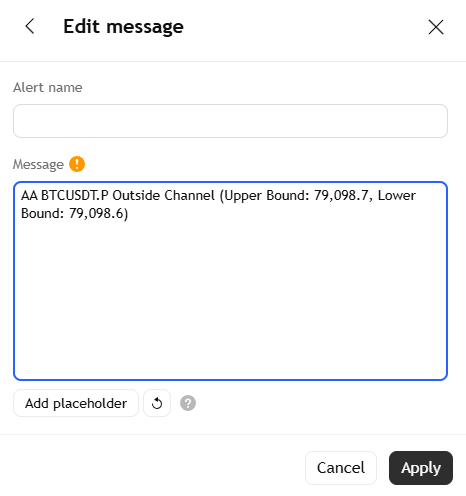 Open full-size image
Press Create and wait for a price update. Find the event in the TradingView alert log, then check for the AA alarm in DivAlarm. Turn off the test rule and the TradingView test alert when finished.
Choose an alarm type and sound on the keyword rule. The video shows how to set a forced alarm for a TradingView signal.
For Pro auto-orders, register your exchange API key in Settings → Auto Order Settings. On Bitget, select Read-write and enable both Futures order to place orders and Futures Holdings to view positions.
Then tap the cart at the far right of the keyword row to choose the exchange, symbol and quantity. A matching live signal runs the order when it is enabled.
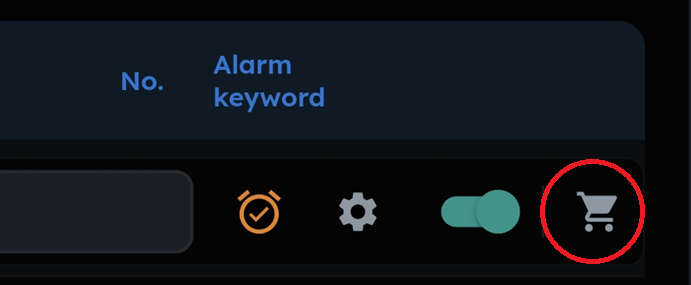 Open full-size image
Enter (1&2)|3 in Alarm Combination and 1h 30m for the time window. The combination fires when keywords 1 and 2 both arrive within 90 minutes, or when keyword 3 arrives.
Combination rules and examples · DivAlarm signal keywords (@D, @E and @P)